
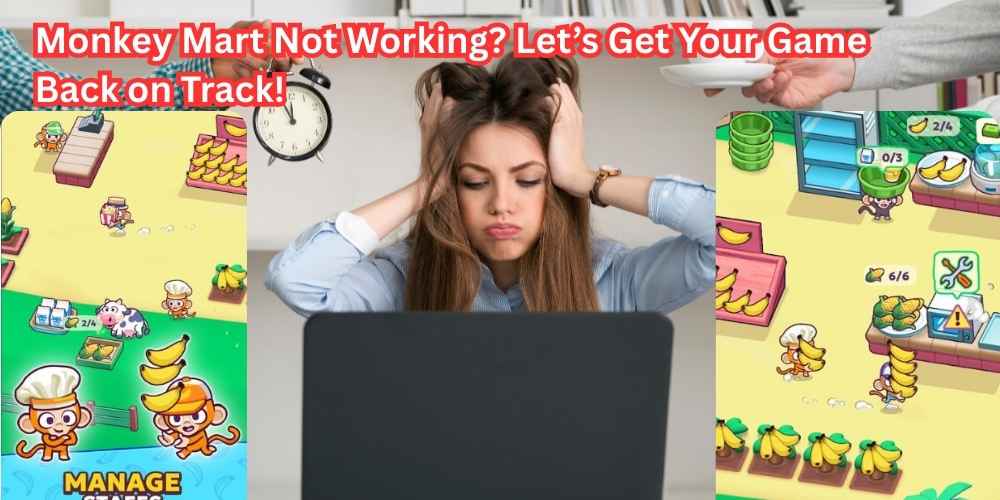
So, you are ready to run your own supermarket. You want to help that cute little monkey plant bananas, stock shelves, and serve customers.
But instead of hearing the happy sound of the cash register, you are just staring at a spinning wheel, a frozen screen, or worse—a completely black screen. To play Monkey Mart Game online , my site is best place for this , it is free of cost, no login required , only visit site and start playing game
I get it. That is super frustrating.
You just want to relax and play a free game, but technology is getting in the way. Don’t worry, and don’t throw your computer out the window!
This guide is your ultimate fix for 2026. Whether you are playing on a school Chromebook, a home laptop, or your phone, we are going to solve these problems together.
I wrote this in super simple words—so simple that even a 10th grader can follow along. Let’s get your Monkey Mart back up and running right now!
Why Does My Game Keep Crashing? (The Simple Reasons)
Before we start pressing buttons, let’s talk about why this happens. Usually, it is one of three things:
- The Internet Gremlins: Sometimes your Wi-Fi is just sleepy or slow.
- The Cache Monster: Your browser saves old information (that is the cache). Sometimes that old info fights with the new game.
- The Busy Server: Sometimes a lot of people are playing at once, and the game gets tiring.
But don’t worry. We have a 2026 guide full of tricks to fix all of this.
Section 1: Fixing the “Loading Screen” Issue (The Game Won’t Start)
You click play. The screen is gray or white. The little monkey is dancing, but he never stops dancing. The game never loads.
Here is your battle plan to fix the loading issues.
1. The “Hard Refresh” Trick (Super Easy)
Your browser is sometimes lazy. It uses saved files to load things faster, but those files might be broken.
- On Windows/Linux/ChromeOS: Press and hold Ctrl and then press F5 (or just hold Ctrl and click the refresh arrow).
- On Mac: Hold Command + Shift and press R.
This forces the browser to get fresh files. You should see the game reload from scratch.
2. Clear Your Browser Cache (The Deep Clean)
If the hard refresh didn’t work, we need to clean the basement. We need to delete the “cache.”
For Google Chrome (best for Monkey Mart):
- Click the three dots in the top right corner.
- Go to Settings -> Privacy and Security -> Clear browsing data.
- In the pop-up window, change the “Time range” to All time.
- Make sure “Cached images and files” is checked. (You can uncheck passwords so you don’t lose logins).
- Hit Clear data.
Now, close the browser completely, open it again, and try your free game.
3. Check Your Internet Speed
Monkey Mart needs a steady connection. If your Wi-Fi is weak, the game stops loading.
- Pro Tip: If you are at school or work, the network might be blocking games. This is common. You might need an unblocked version of the site, but usually, just switching from the school Wi-Fi to your phone’s mobile hotspot for one minute can fix the load.
Section 2: Banishing the “Black Screen”
The black screen is scary. It looks like your device died. But don’t panic! The game is usually there; the graphics just got confused.
The “Graphics Driver” Glitch
This happens a lot in 2026 because games are getting fancier.
- Fix: Try zooming out. Hold Ctrl and press the minus – key. Sometimes the game is just zoomed in too far on a black box.
- Fix: If you are on a phone or tablet, close the tab completely. Go to your phone settings and turn on “Force GPU Rendering” (usually in Developer Options).
The Ad Block Block
Do you use an ad blocker? Those are great for YouTube, but sometimes they are too good. They accidentally block the game screen.
- Fix: Look for the little puzzle piece or stop sign icon in your browser bar. Click it and Pause the ad blocker for this site. Then refresh the page.
Section 3: Stop the Lag! (Making the Game Faster)
Is your monkey moving like he is stuck in peanut butter? Is the game stuttering? That is lag. Here is how to make your Monkey Mart gameplay smooth in 2026.
Close Your Tabs
You probably have 50 tabs open. I do it too. But every tab eats up your computer’s RAM (that is the thinking power).
- Fix: Close everything except the game tab. Yes, close Spotify, close that homework doc, close the shopping page. Just the monkey.
Turn Off “High Quality” Mode
Some browsers try to make the game look 4K. You don’t need that.
- Fix: In your browser settings, look for “Use hardware acceleration” and turn it OFF. Then restart your browser. This forces the game to use simple math instead of fancy graphics, which makes it much faster.
Play in “Windowed” Mode
Don’t use full screen (F11). Keep the game in a smaller window. It sounds silly, but a smaller window means less work for your computer, which means zero lag.
Section 4: The “Game Won’t Save” Problem
You played for an hour, you bought the corn field, you hired a helper monkey. You close the browser, come back later, and… you are back to zero! Your progress is gone.
How Monkey Mart Saves
Most free browser games like this use Local Storage. That is a fancy way of saying “the game saves on YOUR computer, not on the internet.”
Fix #1: Don’t use Private Mode.
If you are using Incognito Mode (Chrome) or Private Browsing (Safari/Firefox), the game forgets everything as soon as you close the window. Stop using Private mode for games you want to save.
Fix #2: Check your disk space.
If your computer hard drive is totally full, the browser cannot write the save file.
- Windows: Go to “This PC” and see if the bar is red.
- Mac: Go to “About This Mac” -> “Storage.”
If it is full, delete some old videos or games.
Fix #3: Export your save (Pro Gamer Move).
If you want to be 100% safe, look for an “Export” or “Backup” option in the game’s settings menu (usually a little gear icon). Copy that long code into a text file on your desktop. If you lose your save, just paste it back in.
Section 5: Device-Specific Fixes (Phone, Chromebook, PC)
Different machines have different problems. Let’s look at what you are using.
Playing on a School Chromebook?
Schools lock these down hard.
- Problem: The screen is blank.
- Fix: Check the address bar for a little “Eye” icon or a puzzle piece. The school filter might be blocking it. Try typing https:// before the web address.
- Lag Fix: Chromebooks are weak (sorry, Chromebook). Turn off all other extensions. Go to chrome://extensions and disable everything except what you need.
Playing on an iPhone or iPad (Safari)?
- Problem: The screen is black or the touch isn’t working.
- Fix: This is almost always a “Low Power Mode” issue. Go to Settings -> Battery -> Turn OFF Low Power Mode. This gives the browser the power it needs to run the game.
- Fix: Use “Request Desktop Website.” Tap the “aA” icon in the address bar and choose “Request Desktop Website.” Sometimes the mobile version is buggy.
Playing on Windows PC (Chrome/Edge)?
- Problem: The game crashes after 5 minutes.
- Fix: Update your graphics drivers. Type “Device Manager” in the start menu, find “Display adapters,” right-click your card, and hit “Update driver.”
- Fix: Run the System File Checker. Open Command Prompt as Admin, type sfc /scannow and press Enter. This fixes broken system files that might be messing with the game.
Section 6: The “Blank White Box” or “Plugin Failed”
Sometimes you see a blank white box where the game should be, or a message saying “Plugin not supported.”
The 2026 Reality Check:
Flash Player is dead. It died years ago. Monkey Mart uses HTML5. That is the new standard.
- Fix: Update your browser. I know you hate updating, but if you are using Chrome version 100 and it is now version 130, the game won’t work.
- Go to chrome://settings/help – it will automatically update.
- Fix: Disable your antivirus for 5 minutes. Sometimes Norton or McAfee thinks the game is a virus because the code is moving fast. It is not a virus. Whitelist the website in your antivirus settings.
Ultimate Pro-Tips to Keep Your Game Running Smooth
Once you fix it, here is how to keep it fixed forever.
- Play in “Guest” mode if it crashes a lot. Open a Guest profile in Chrome. It has zero extensions and a clean slate. The game will fly.
- Don’t click spam. When the game lags, you click “Harvest” 100 times. That tells the computer to do 100 things at once. It freezes. Click once, wait one second, click again.
- Restart your router. I know this is the cliché fix, but for online loading issues, unplugging your Wi-Fi box for 30 seconds actually clears the air and fixes 90% of problems.
Why is Monkey Mart So Addictive? (And worth fixing)
Just so we remember why we are doing all this work: Monkey Mart isn’t just a game. It is a strategy dream.
You start with bananas. You harvest them yourself. You run to the shelf. You run to the cash register. You are a one-monkey army.
Then, you buy the corn field. Suddenly, you have two things to do. Then you unlock eggs, then milk, then chocolate.
The game becomes a beautiful chaos. You are running back and forth, trying to keep customers happy while your crops are growing. The best part is when you finally hire helper monkeys. You get to stand there like a boss while your employees do the hard work.
That feeling of watching your little supermarket empire grow is worth fixing the black screen for.
Quick Summary Checklist (Do this first!)
If you don’t have time to read the whole article, just do these three things right now:
- [ ] Hard Refresh: Hold Ctrl + F5.
- [ ] Clear Cache: Delete your browsing data from “All time.”
- [ ] Close Tabs: Close everything else on your computer.
Did that fix it? Great!
Still broken? Try the Incognito Mode trick. If it works in Incognito, it means one of your browser extensions is the bad guy.
Final Words
Don’t let a frozen screen ruin your day. You have the tools now. You know how to fix the loading, stop the lag, and beat the black screen.
Go back to the site, take a deep breath, and try the steps. I promise you, once you see that little monkey start planting those bananas again, the stress will melt away.
Now go build your supermarket empire! Happy gaming.
Disclaimer: This guide is for general troubleshooting. Since this is a free game hosted on my site, I keep it updated, but sometimes your specific device just has a bad day. When in doubt, just restart your computer. That fixes almost everything

2 Comments
Your comment is awaiting moderation.
[…] Monkey Mart Not Working? Let’s Get Your Game Back on Track! […]
[…] Monkey Mart Not Working? Let’s Get Your Game Back on Track! […]
Yo, just tried my luck on onex bet, and gotta say, it’s pretty solid. Good odds and easy to use. Check it out here: onex bet